
Introduction
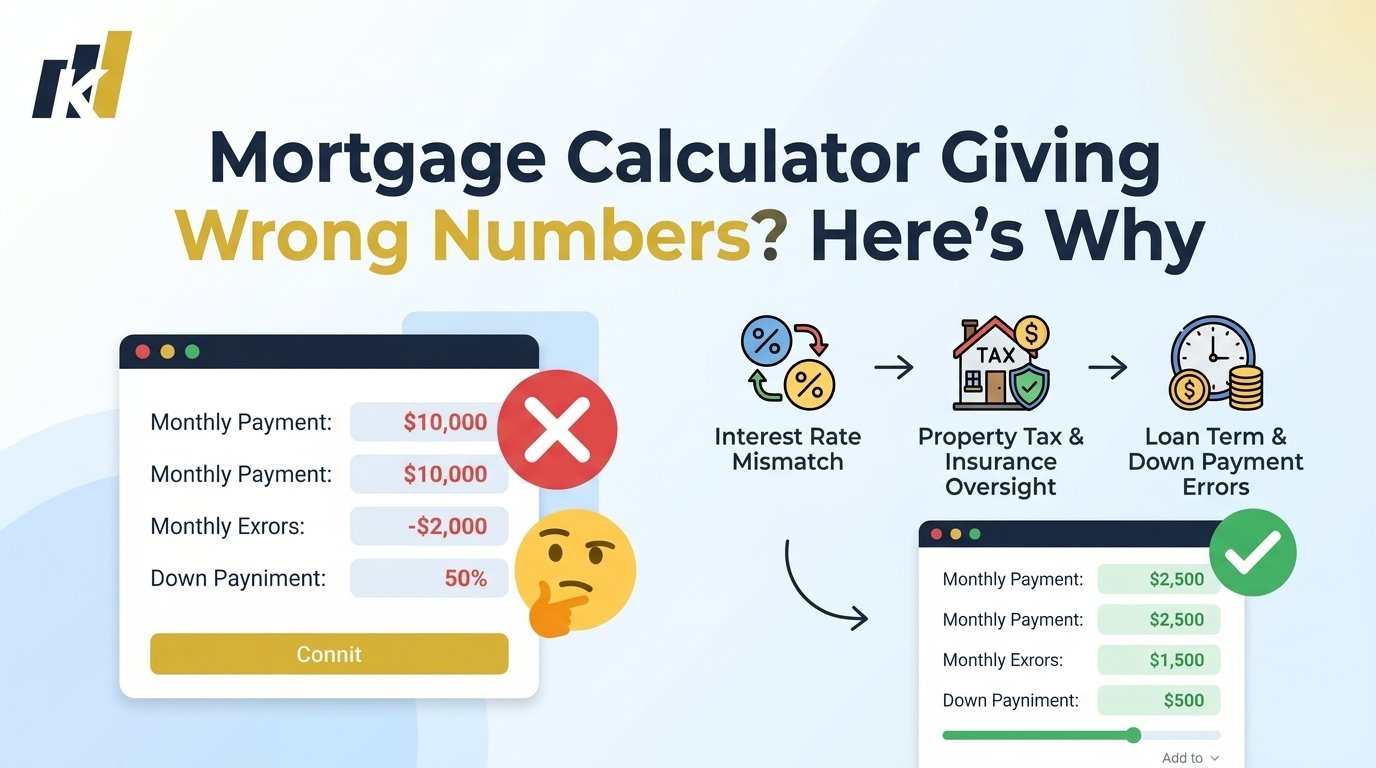
You punched your numbers into a mortgage calculator and got a monthly payment that looked perfect. Then you talked to a lender, and the real number was hundreds of dollars higher. That’s not a calculator glitch. That’s a gap between what a basic mortgage calculator shows you and what homeownership actually costs.
Most people hit this problem because they grab the first free mortgage calculator they find, plug in a home price and interest rate, and trust whatever number comes out. The calculator gives them a number. The lender gives them a completely different one. And suddenly nothing makes sense.
The root cause is simple. A basic mortgage calculator only shows you principal and interest. It leaves out property taxes, homeowner’s insurance, private mortgage insurance, HOA fees, and a dozen other real costs. The number looks great on screen because it’s missing most of the actual bill.
The other big issue is that people don’t know which inputs to use. They guess at the interest rate. They don’t know what term length to pick. They skip the down payment field or fill it in wrong. Small errors in those boxes create big errors in the output.
This article fixes all of that. You’ll understand exactly how a mortgage calculator works, what it leaves out by default, how to enter your numbers correctly, and how to get a monthly payment estimate that actually matches what a lender will charge you. No vague tips. Just a clear, step-by-step process so your mortgage calculator finally gives you numbers you can trust.
Quick Answer
Quick Answer: A mortgage calculator gives wrong results because most basic versions only calculate principal and interest, leaving out taxes, insurance, and fees. To fix it: add your property tax rate, homeowner’s insurance cost, and PMI if your down payment is under 20%. Most people get accurate estimates when they switch to a full PITI mortgage calculator and use a real current interest rate from a lender.
Why Your Mortgage Calculator Payment Seems Too Low
After entering the cost of a house, you click Calculate and decide, “I can afford that.” Then reality sets in.
The majority of mortgage calculators display an incomplete figure. It’s not incorrect math. The math is missing. Because it only covers two of the five items you will really pay each month, the payment appears cheap.
Why It Occurs
Only principle and interest are calculated with a simple mortgage calculator. The portion of your loan that you are paying down is called the principal. The cost of the lender’s loan to you is called interest. The loan amount, interest rate, and loan duration are the math. Quick solution, easy formula.
However, there are three more components to your actual monthly mortgage payment. Your lender collects property taxes on a monthly basis and keeps them in an escrow account until tax time. The same is true for homeowner’s insurance. Additionally, you will have to pay private mortgage insurance, or PMI, if your down payment is less than 20% of the purchase price. PITI stands for Principal, Interest, Taxes, and Insurance.
A calculator that only shows P and I is leaving out at least 25% of your real payment, sometimes more. In areas with high property taxes, that gap can be 40% or wider.
The Fix
- Look for a mortgage calculator that includes taxes and insurance fields. Search specifically for “PITI mortgage calculator” instead of a basic version.
- Find your local property tax rate. Your county assessor’s website will have it. Multiply the home price by that percentage to get the annual tax, then divide by 12.
- Add homeowner’s insurance. A rough estimate is $100 to $200 per month for most homes, though it varies by location and home value.
- Check if PMI applies. If your down payment is less than 20% of the purchase price, add PMI. It typically runs 0.5% to 1.5% of the loan amount per year, divided by 12.
- Plug all five numbers into the calculator and run it again.
Common Mistakes
- Using the low number from a basic calculator to set your home budget. This leads to looking at homes you genuinely can’t afford.
- Forgetting that property tax rates vary by neighborhood. Two homes with the same price can have very different tax bills depending on where they sit.
- Assuming PMI goes away immediately. PMI stays until you hit 20% equity in your home. On a long loan, that can take years.
The outcome
Your mortgage calculator will display a figure that is far closer to what your lender charges if you include taxes and insurance. The difference decreases from hundreds of dollars to perhaps twenty or thirty, albeit it won’t be precise. You can really make plans around that amount.
How to Enter Interest Rate Correctly in a Mortgage Calculator
Most people make their first major error at this point. Their entire computation goes awry when they enter a figure they’ve heard or the rate listed in a headline.
The most delicate entry in any mortgage calculator is the interest rate field. Even a half-percent discrepancy can alter your monthly payment more than you would anticipate and alter the total amount of interest you pay over the course of the loan by tens of thousands of dollars.
Why It Happens
There are two reasons why people utilize the incorrect rate. They start by using advertised rates. Only consumers with outstanding credit, substantial down payments, and ideal financial profiles are eligible for the best rate that lenders advertise. The headline rate is not available to the majority of purchasers.
Secondly, they mix up interest rates with annual percentage rates. These numbers are not the same. The total cost of borrowing is the interest rate. The interest rate plus fees and other loan expenses are included in the APR (Annual Percentage Rate), which is calculated throughout the course of the loan. Using APR in your mortgage calculator will result in an exaggerated monthly payment estimate because it is always greater than the interest rate.
The Fix
- Avoid speculating. Obtain an actual rate. The majority of lenders provide free pre-qualification. This provides you with a real rate depending on your debt burden, income, and credit score.
- In the mortgage calculator, enter the interest rate rather than the annual percentage rate. Specifically, look for the “interest rate” field.
- Check current average rates from a financial news source if you haven’t already spoken with a lender. Then, to account for the fact that advertising rates are for ideal borrowers, add 0.5% to 1%.
- To view a range, use your mortgage calculator with two or three different rates. Compute using the anticipated rate, then compute using a rate that is 0.5% higher. Recognize both numbers.
Common Mistakes
- entering the APR in the space for interest rates. An affordable house may appear unaffordable if your estimated payment is too high.
- use prices from a few months prior. Rates are always changing. The rate you’ll receive today can change greatly from the rate you received three months ago.
- assuming that a friend’s rate and yours are the same. Your personal rate is influenced by a number of factors, including credit scores, loan amounts, and down payment percentages.
Pro Tip: Spend twenty minutes obtaining a genuine pre-qualification from a lender before using any mortgage calculator. Your computations will be based on fact rather than speculation, and you will receive an actual rate to enter.
Result
When you use a real, current rate that’s based on your actual credit profile, your mortgage calculator output becomes a real planning tool instead of just a number on a screen. It’s the single biggest accuracy upgrade you can make.
Why Down Payment Changes Everything in a Mortgage Calculator
There is more to the down payment area in a mortgage calculator than just the amount you pay up front. Most individuals only account for one of the three ways it modifies your monthly payment.
The down payment entry is likely the next problem if, even after adjusting the interest rate, your mortgage calculator figures still don’t seem correct.
Why It Occurs
The majority of consumers expect the calculator will take care of the remainder when they enter their down payment as a dollar figure. They are unaware that the down payment has an impact on the loan amount (which is evident), the PMI calculation (which is less obvious), and occasionally the interest rate itself (which is something that very few people consider).
A larger loan with a smaller down payment results in greater principle and interest payments each month. Everyone can relate to that part. However, a down payment of less than 20% also results in PMI, which raises monthly expenses. Additionally, since they pose less risk, some lenders give higher interest rates to customers who make larger down payments. When you modify the down payment, all three factors change simultaneously.
The Solution
- Enter your down payment as an accurate number. Don’t round up to the nearest easy number. If you have $38,000 saved, enter $38,000.
- Check whether your down payment crosses the 20% threshold. Divide your down payment by the home price. If it’s under 0.20, you’ll pay PMI.
- Calculate your loan amount manually first: home price minus down payment. Enter that loan amount directly if your calculator allows it.
- Run the calculator with your real down payment, then run it again with a down payment that hits exactly 20%. Compare the two monthly payments. That difference shows you exactly what PMI is costing you each month.
- Factor in closing costs. Down payment money and closing cost money come from the same pool. If you drain your savings on the down payment, you may not have enough for closing costs.
Typical Errors
- Not having enough money for closing fees or an emergency fund after spending every dollar saved on the down payment to avoid PMI.
- When your down payment is less than 20%, do not rerun the mortgage calculator after taking PMI into consideration.
- There is usually a better bargain when a larger down payment is assumed. Sometimes it makes more sense to hold extra money in reserve when making a 10% down payment.
The outcome
You may see exactly what each dollar of down payment truly gets you by using the mortgage calculator with a precise down payment, including a PMI estimate if necessary. Rather of speculating, you may really decide how much to put down.
How Loan Term Affects Your Mortgage Calculator Results
The length of time you have to pay off your mortgage is known as the loan term. Most individuals choose 30 years without giving it any thought. However, that one decision has a significant impact on your long-term financial stability, your monthly payment, and the overall amount of interest you pay.
Simply altering the duration from 30 years to 20 or 15 years might drastically alter the findings of your mortgage calculator.
Why It Occurs
Although 20-year and 10-year periods are also available, 30-year and 15-year loan terms are the most popular. A 30-year term results in fewer payments since they are spread over a longer period of time. The same loan is compressed into fewer installments over a 15-year period, making each payment higher, but because the loan is paid off in half the time, you pay significantly less interest overall.
Due to the smaller monthly payment and the perception that it is more affordable, the majority of individuals default to 30 years. They overlook the fact that they will pay almost twice as much interest on a 30-year loan as they would on a 15-year loan for the same amount. If you utilize the mortgage calculator correctly, it may plainly display this.
The Fix
- Run your mortgage calculator twice. First with a 30-year term, then with a 15-year term. Write down both monthly payments.
- Find the “total interest paid” or “amortization summary” in the calculator output. Compare the total interest for both terms. The difference is often shocking.
- Calculate whether you can actually afford the 15-year payment. A 15-year payment is typically 30-40% higher per month than a 30-year payment.
- Consider a 20-year term as a middle ground. The monthly payment is higher than a 30-year loan but lower than a 15-year loan, and you save a significant amount of interest.
- Don’t automatically default to 30 years just because it has the lowest payment. Look at the total cost over time.
Common Mistakes
- Only looking at the monthly payment without checking the total interest paid column. The monthly savings on a 30-year loan can be wiped out by years of extra interest.
- Choosing a 15-year loan that stretches your budget too thin, leaving no room for home repairs or financial emergencies.
- Not running both scenarios in the mortgage calculator before deciding.
Result
After comparing both term options in the mortgage calculator, you can make a smart choice rather than just a default one. Many people discover that a 20-year term gives them a better balance of affordable payments and reasonable total interest.
Why Your Mortgage Calculator Doesn’t Match Your Lender’s Quote
You did everything right. You added taxes and insurance. You used a real interest rate. You entered the correct down payment and loan term. But the number your lender gave you still doesn’t match what your mortgage calculator shows. Here’s why.
Why It Happens
Lenders include costs that no basic mortgage calculator accounts for. These include origination fees, discount points, prepaid interest, homeowner’s association fees, and escrow setup costs. Some of these are one-time upfront costs. Others get folded into your monthly payment.
Origination fees are what the lender charges to process your loan. Discount points are optional upfront payments you can make to buy down your interest rate. Prepaid interest covers the interest that accrues from the day your loan closes until your first payment due date. None of these show up in a standard mortgage calculator.
There’s also the issue of escrow. Your lender may require you to prepay several months of property taxes and insurance upfront at closing to establish an escrow account. That’s a closing cost, not a monthly payment, but buyers often confuse the two.
The Fix
- Request a Loan Estimate from your lender. This is a standardized document that lists every single cost – monthly payments, one-time fees, and closing costs. It’s the definitive breakdown.
- Compare the Loan Estimate to your mortgage calculator output line by line. Find where the numbers diverge.
- If your lender’s monthly payment is higher than your calculator shows, ask which costs are being rolled into the monthly payment.
- Look for mortgage calculators that include fields for origination fees, points, and other closing costs. These are called “advanced” or “detailed” mortgage calculators and give far more accurate results.
- Ask your lender for the total APR. This number reflects the true cost of the loan including fees. Use it to compare loan offers side by side, not just the quoted interest rate.
Common Mistakes
- Trusting the mortgage calculator over the Loan Estimate document. The Loan Estimate from a licensed lender is the real number.
- Comparing two lenders only by their interest rate without looking at fees. A lower rate with high fees can cost more overall than a slightly higher rate with low fees.
- Assuming all lenders charge the same fees. They don’t. Shop at least three lenders and compare their Loan Estimates directly.
Warning: Never make a final home purchase decision based on a mortgage calculator alone. Always get a formal Loan Estimate from a lender before committing to anything. The calculator is a planning tool, not a contract.
Result
Once you compare your Loan Estimate to your mortgage calculator output and understand where the gaps come from, you can use the calculator as a rough planning tool and treat the Loan Estimate as the real number. You stop being surprised by lender quotes.
How to Use a Mortgage Calculator to Set a Real Budget
Most people use a mortgage calculator backwards. They start with a home price they want and check if they can afford the payment. What you should do is start with a payment you can afford and work backwards to find what home price that buys you.
Done right, a mortgage calculator is your most powerful budgeting tool. Done wrong, it gives you false confidence and lands you in a home you can’t actually sustain.
Why It Happens
The backwards approach happens because people browse listings first. They fall in love with a home, check the price, plug it into a mortgage calculator, and then try to convince themselves the monthly payment is fine. That’s an emotional process pretending to be a financial one.
The right approach is financial first. Decide how much house payment you can actually handle each month – including taxes, insurance, and PMI – and then use the mortgage calculator to find your purchase price ceiling. This keeps emotion from inflating your budget.
Most financial guidelines suggest that your total housing payment (PITI) should stay at or under 28% of your gross monthly income. Some lenders allow up to 31% or even 36%. Use 28% as your starting point.
The Fix
- Calculate 28% of your gross monthly income. That’s your target maximum housing payment.
- Open a PITI mortgage calculator. Enter the payment as the target, not the price.
- Enter your interest rate and loan term. Leave the home price blank for now.
- Work backwards. Most good calculators let you enter a desired monthly payment and calculate the resulting loan amount. If yours doesn’t, try different home prices until you hit your target payment.
- Subtract your planned down payment from that loan amount to find your maximum home price.
- That number is your ceiling. Not your target. Your ceiling.
Common Mistakes
- Calculating 28% of income but forgetting to subtract taxes and insurance from that number before using it for principal and interest.
- Using gross income instead of take-home pay as the base. Your mortgage payment comes from the money that actually lands in your account, not your pre-tax number.
- Setting your budget at the maximum and leaving no room for home maintenance, which typically costs 1-2% of the home’s value per year.
Pro Tip: After finding your maximum home price using the mortgage calculator, subtract 10-15% from it. That’s your actual target price range. It gives you room for repairs, unexpected costs, and life events without putting you in financial stress from day one.
Result
When you use the mortgage calculator to set your budget first instead of confirming a budget you already chose emotionally, you shop in a price range you can genuinely afford. You stop falling in love with homes that are actually out of reach.
Understanding Amortization in Your Mortgage Calculator
Your mortgage calculator probably has an amortization schedule feature. Most people ignore it. That’s a mistake. The amortization table shows you something counterintuitive and important about how mortgages actually work.
Why It Happens
People assume that if they’re paying $1,500 a month on a mortgage, $750 goes to principal and $750 goes to interest. That’s not how it works. Mortgage loans are front-loaded with interest. In the early years of your loan, the vast majority of each payment goes to interest, not to paying down what you actually owe.
This matters because it affects how quickly you build equity, how refinancing affects your total cost, and what happens if you make extra payments. A mortgage calculator with an amortization feature shows you this breakdown month by month.
The Fix
- After calculating your monthly payment, look for an “Amortization Schedule” or “Amortization Table” button or tab in the mortgage calculator.
- Open the schedule and look at year one. Find the column that shows how much of your payment goes to principal vs. interest in the first 12 months.
- Compare that to year 15 or year 20 of the schedule. You’ll see that the principal portion grows slowly while interest shrinks over time.
- Use this information to evaluate extra payments. Most mortgage calculators have an “extra payment” field. Enter $100 or $200 extra per month and see how much it shaves off your total interest and your loan term.
- If you’re considering refinancing, use the amortization table to see where you are in your current loan’s schedule before deciding.
Common Mistakes
- Refinancing a 30-year loan after 10 years into a new 30-year loan. You restart the amortization clock, which means years of interest-heavy payments all over again.
- Making extra payments without checking if your loan has a prepayment penalty. Some loans charge a fee for paying off early. Your mortgage calculator can’t tell you this. Your loan documents can.
- Assuming that paying an extra $50 per month won’t make much difference. The amortization schedule will show you exactly how much it saves. It’s often more than people expect.
Result
Once you understand amortization and use that section of the mortgage calculator, you see your mortgage as a long-term financial strategy instead of just a monthly bill. You can make smarter decisions about extra payments, refinancing, and how fast you’re actually building ownership in your home.
How to Compare Loan Offers Using a Mortgage Calculator
Getting two or three loan offers is smart. Comparing them correctly is harder than it sounds. Most people compare monthly payments and call it done. That comparison is incomplete and sometimes misleading.
Why It Happens
Two loans can have different interest rates, different fee structures, different points, and different terms – but end up with very similar monthly payments. Or one loan has a lower monthly payment but costs more in total interest because of the term length. Looking only at the monthly number misses all of that.
A mortgage calculator, used correctly, helps you cut through the noise and see the real cost of each loan offer side by side.
The Fix
- Collect a Loan Estimate from at least three lenders. These are standardized documents and use the same format by regulation, making comparison straightforward.
- Open your mortgage calculator for each loan offer separately. Enter the loan amount, interest rate (not APR), and loan term from each Loan Estimate.
- Record the monthly payment and total interest paid for each option.
- Add the upfront fees from each Loan Estimate (origination fees, points paid) to the total interest figure for each loan. This gives you the real total cost.
- Calculate the break-even point for any loan that has discount points. Divide the cost of the points by the monthly savings they generate. That tells you how many months it takes for the points to pay off. If you plan to sell or refinance before that point, buying down the rate isn’t worth it.
Common Mistakes
- Comparing a 30-year offer from one lender to a 15-year offer from another. You need to compare the same loan term to make the comparison meaningful.
- Ignoring fees entirely and only looking at the rate. A lender offering a rate that’s 0.25% lower but charging $5,000 more in fees might cost you more overall, depending on your timeline.
- Not accounting for the possibility that you’ll sell or refinance before the loan is paid off. Most people don’t keep their mortgage for the full 30 years.
Result
Using the mortgage calculator to compare total loan costs instead of just monthly payments, you stop getting dazzled by low payment quotes and start seeing which loan actually saves you the most money over your expected ownership timeline.
FAQ
Why does my mortgage calculator show a different number than my lender?
Your mortgage calculator is most likely only calculating principal and interest. Your lender’s quote includes property taxes, homeowner’s insurance, PMI if applicable, and possibly fees rolled into the payment. The fix is to use a PITI mortgage calculator that has separate fields for taxes and insurance, and to get the real numbers for each from your tax assessor and insurance agent. The gap between a basic calculator and a lender quote is often 25-40% or more in areas with high property taxes.
How accurate is a mortgage calculator?
A mortgage calculator is accurate for the math it actually does. If you enter correct numbers – real interest rate, accurate loan amount, proper term – the principal and interest calculation will be precise. The accuracy problem comes from missing inputs, not wrong math. Add property taxes, homeowner’s insurance, and PMI to get a monthly estimate that’s within $20-30 of a real lender quote. Never use a basic calculator as your final number before making a purchase decision.
What interest rate should I use in a mortgage calculator?
Use a rate that’s based on your actual credit profile, not an advertised rate. Get pre-qualified with at least one lender before doing serious mortgage calculator planning. If you haven’t spoken to a lender yet, look up current average rates and add 0.5 to 1 percentage point to account for the gap between advertised rates and the rate you’ll actually receive. Always enter the interest rate, not the APR. These are different numbers, and entering the APR will inflate your calculated payment.
Why is my mortgage calculator monthly payment lower than expected for a 15-year loan?
This actually makes sense. A 15-year mortgage does have a higher monthly payment than a 30-year mortgage at the same loan amount, but the interest rate on a 15-year loan is typically lower than a 30-year rate. So while the term is shorter, the lower rate partially offsets the higher payment. If your mortgage calculator is showing a payment that seems too low for a 15-year loan, double-check the interest rate you entered. Make sure you’re using a 15-year rate, not a 30-year rate with a 15-year term.
How do I calculate PMI in a mortgage calculator?
PMI applies when your down payment is less than 20% of the purchase price. The rate typically ranges from 0.5% to 1.5% of your loan amount per year, depending on your credit score and loan-to-value ratio. To add PMI to your mortgage calculator: multiply your loan amount by 0.01 (for a 1% PMI rate), then divide by 12. That’s your monthly PMI cost. Add it manually to your calculator output if the tool doesn’t have a PMI field, or look for a mortgage calculator that calculates PMI automatically.
What’s the difference between a mortgage calculator and a home affordability calculator?
A mortgage calculator takes a known home price and loan details and calculates the monthly payment. A home affordability calculator works backwards – you enter your income, debts, and down payment, and it tells you how much home you can afford. Both tools use the same math. The difference is the starting point. Use a home affordability calculator first to set your budget ceiling, then use a mortgage calculator to calculate specific payments on homes within that range. Most good mortgage sites offer both.
How does extra payment affect my mortgage calculator results?
Making extra payments toward the principal of your loan reduces the total interest you pay and shortens your loan term. Most mortgage calculators have an “extra payment” or “additional payment” field. Enter $100, $200, or whatever extra amount you’re considering, and the calculator will show you the revised payoff date and total interest saved. Even small extra payments made consistently can save thousands in interest and shave years off your loan. Always verify your loan doesn’t have a prepayment penalty before making extra payments.
Why do some mortgage calculators show the total cost of the loan as much more than the purchase price?
That’s the total interest effect on a long-term loan. On a 30-year mortgage, you’re paying interest on a large balance for three decades. The total interest alone can equal or exceed the original loan amount. This is not an error. It’s how mortgage math works. This is also why comparing a 30-year and 15-year loan in your mortgage calculator is eye-opening. The 15-year loan has higher monthly payments but the total interest paid is dramatically lower because the loan is repaid so much faster.
Should I include HOA fees in my mortgage calculator?
Yes, absolutely. HOA fees don’t show up in most mortgage calculators because they’re not part of the loan. But they’re a real monthly cost of owning that property. Add your HOA fee to the total PITI number you get from the mortgage calculator to get a complete picture of your monthly housing expense. HOA fees can range from $50 to $1,000 or more per month depending on the property type, so they’re not trivial. Always factor them in before deciding what you can afford.
Can a mortgage calculator tell me when I’ll break even if I refinance?
Yes, most good mortgage calculators have a refinancing option. You enter your current loan balance, current rate, new rate, and the closing costs of the refinance. The calculator shows you the monthly savings from the lower rate and divides that into the closing cost to give you a break-even timeline. If you plan to stay in the home longer than the break-even point, refinancing makes financial sense. If you might sell or refinance again before that date, the closing costs outweigh the savings.
Conclusion
Here’s the bottom line. A mortgage calculator is a powerful tool when you use it correctly, and an almost useless one when you don’t. The good news is that fixing the common problems is straightforward once you know what they are.
The four most important fixes are these. First, switch from a basic calculator to a full PITI mortgage calculator that includes taxes and insurance. That one change gets you a realistic monthly payment instead of a misleading low number. Second, use a real interest rate from a lender pre-qualification instead of an advertised headline rate. Third, account for PMI if your down payment is under 20%. Fourth, look at total interest paid over the life of the loan, not just the monthly payment.
These four changes will make your mortgage calculator results go from rough guesses to actual planning numbers.
Your next step right now is simple. Get pre-qualified with a lender. It takes about 20 minutes online and costs nothing. You’ll get a real interest rate based on your actual credit profile. Plug that rate into a PITI mortgage calculator with your real down payment and local tax rate. That’s the closest estimate you’ll get without a formal Loan Estimate.
You can do this. The math isn’t complicated once you know what numbers to use. The mortgage calculator is on your side. You just needed to know how to use it properly.